![PCS-Black-icon-1.png]](https://processes.premiercrop.com/hs-fs/hubfs/PCS-Black-icon-1.png?width=35&height=40&name=PCS-Black-icon-1.png)
Weighted average attributes for measures
As a best practice, always create a weighted average attribute within the data visualization for any queries that contain multiple dimensions. We’ve done the first step for you by automatically adding in a pre-calculated ‘Total’ column for all measures in all queries.
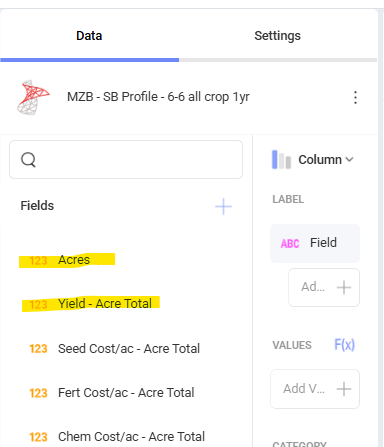
- In edit mode on a visual, add Acres and whichever attribute you want to create a weighted average for. Here, I’ll use Yield - Acre Total to demonstrate:
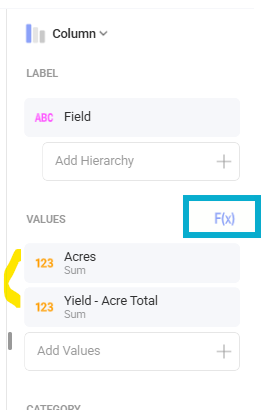
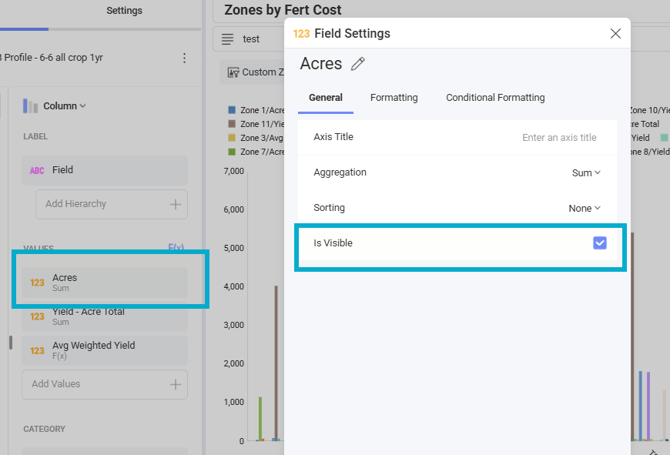
Choose your chart type, then move these columns into ‘Values’ and hit the F(x) button. Be sure they’re both set to ‘Sum’ as the aggregation, shown here.
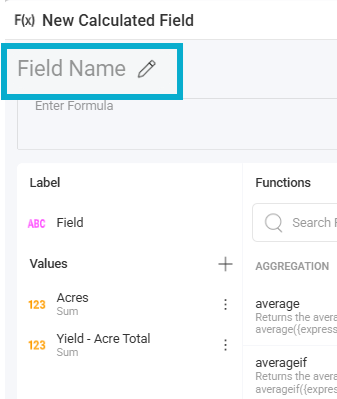
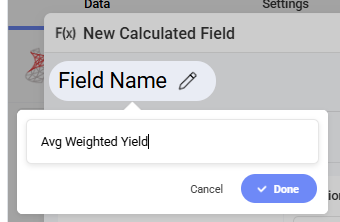
- Name your field - this will display on your visual so choose well. I’ll use “Avg Weighted Yield”
- Enter the formula by simply clicking on the value option “Yield - Acre Total”, adding a divide symbol, then clicking “Acres”. Hit save. This is dividing the row level value (which is already multiplied by acres) by acres to get a weighted average.
- Next, you’ll hide the Acres and Yield - Acre Total column from your graph so they don’t display. Click the value for Acres, uncheck the box ‘Is Visible.’ Do the same for Yield - Acre Total.
- You can now only see the weighted average for your attribute!