---
title: Conditional Formatting on Visuals
description: Conditional formatting yield data color coding cells
---
[Skip to content](https://processes.premiercrop.com/knowledge/conditional-formatting-on-visuals#main-content)
[Customer portal](https://processes.premiercrop.com/tickets-view?hsLang=en)
![PCS-Black-icon-1.png\]](https://processes.premiercrop.com/hs-fs/hubfs/PCS-Black-icon-1.png?width=35&height=40&name=PCS-Black-icon-1.png)
- [Tickets](https://processes.premiercrop.com/tickets-view)
- [Sign out](https://processes.premiercrop.com/_hcms/mem/logout)
Open main navigation
Close main navigation
- [Tickets](https://processes.premiercrop.com/tickets-view)
- [Sign out](https://processes.premiercrop.com/_hcms/mem/logout)
- [Customer portal](https://processes.premiercrop.com/tickets-view)
- [Go to premiercrop.com](https://services.premiercrop.com/)
[Go to premiercrop.com](https://services.premiercrop.com/)
What do you need help with today?
- There are no suggestions because the search field is empty.
1. [Premier Knowledge Base](https://processes.premiercrop.com/knowledge?hsLang=en)
2. [Analyst Studio](https://processes.premiercrop.com/knowledge/analyst-studio?hsLang=en)
3. [Visualizations](https://processes.premiercrop.com/knowledge/analyst-studio?hsLang=en#visualizations)
# Conditional Formatting on Visuals
## Apply conditional formatting to a table or visual to quickly spot differentiation.
Conditional formatting can be applied to the following visualizations:
- [Grid Chart](https://help.revealbi.io/user/chart-types/grid-chart/)
- [Pivot Chart](https://help.revealbi.io/user/chart-types/pivot-table/)
- [Text View](https://help.revealbi.io/user/chart-types/text-view/)
Also note, KPI, Linear, Circular, Text, and Bullet Graph gauges support conditional formatting in the form of visualization band range configurations.
In order to apply formatting to a pivot chart for, in this example, yield data, you can utilize either actual values or percentages:
1. Click on Field Settings
2. Choose the 'Conditional Formatting' tab
3. Select either Percentage or Number
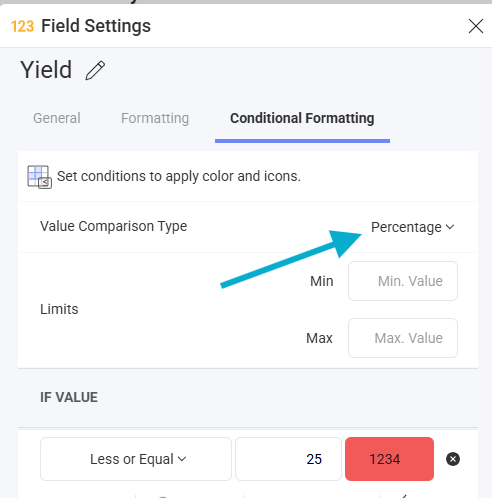
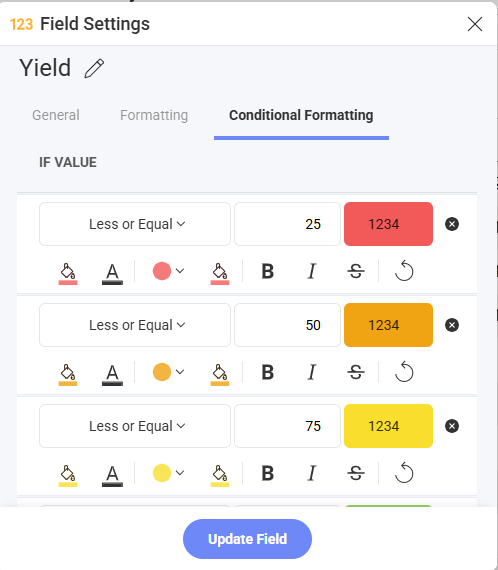
In this case we chose Percentage, then set up 4 ranges using 'Less or Equal' and then 'Greater Than' and set data into 4 ranges.
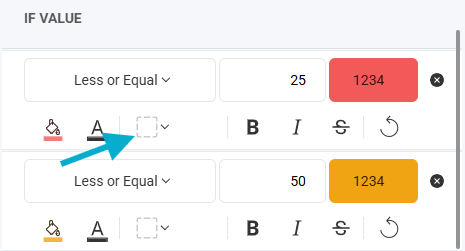
We recommend selecting the 'Indicator' here and clicking it off if you do not wish to use both the cell color and indicator icon color:
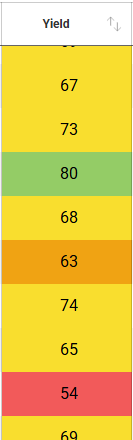
You can see these cells are now color coded based on yield as compared to the other grower's data in the dataset:
- [Getting Started with Premier Crop](https://processes.premiercrop.com/knowledge/getting-started-with-premier-crop?hsLang=en#main-content)
- [Advisor Excel-erator](https://processes.premiercrop.com/knowledge/getting-started-with-premier-crop?hsLang=en#advisor-excel-erator)
- [Premier Crop Systems Software Training](https://processes.premiercrop.com/knowledge/premier-crop-systems-software-training?hsLang=en#main-content)
- [Field Management](https://processes.premiercrop.com/knowledge/premier-crop-systems-software-training?hsLang=en#field-management)
- [Nutrients](https://processes.premiercrop.com/knowledge/premier-crop-systems-software-training?hsLang=en#nutrients)
- [Mgmt Zones](https://processes.premiercrop.com/knowledge/premier-crop-systems-software-training?hsLang=en#mgmt-zones)
- [Seed](https://processes.premiercrop.com/knowledge/premier-crop-systems-software-training?hsLang=en#seed)
- [Crop Protection](https://processes.premiercrop.com/knowledge/premier-crop-systems-software-training?hsLang=en#crop-protection)
- [Operations](https://processes.premiercrop.com/knowledge/premier-crop-systems-software-training?hsLang=en#operations)
- [Premier Intelligence](https://processes.premiercrop.com/knowledge/premier-crop-systems-software-training?hsLang=en#premier-intelligence)
- [Data Exchange](https://processes.premiercrop.com/knowledge/premier-crop-systems-software-training?hsLang=en#data-exchange)
- [Reports](https://processes.premiercrop.com/knowledge/premier-crop-systems-software-training?hsLang=en#reports)
- [Analytics](https://processes.premiercrop.com/knowledge/premier-crop-systems-software-training?hsLang=en#analytics)
- [Dashboards](https://processes.premiercrop.com/knowledge/premier-crop-systems-software-training?hsLang=en#dashboards)
- [Webinars](https://processes.premiercrop.com/knowledge/premier-crop-systems-software-training?hsLang=en#webinars)
- [System Information](https://processes.premiercrop.com/knowledge/premier-crop-systems-software-training?hsLang=en#system-information)
- [Tips and Tricks](https://processes.premiercrop.com/knowledge/premier-crop-systems-software-training?hsLang=en#tips-and-tricks)
- [Unpublished Videos](https://processes.premiercrop.com/knowledge/premier-crop-systems-software-training?hsLang=en#unpublished-videos)
- [Release Note](https://processes.premiercrop.com/knowledge/premier-crop-systems-software-training?hsLang=en#release-note)
- [Analyst Studio](https://processes.premiercrop.com/knowledge/analyst-studio?hsLang=en#main-content)
- [Getting Started](https://processes.premiercrop.com/knowledge/analyst-studio?hsLang=en#getting-started)
- [Visualizations](https://processes.premiercrop.com/knowledge/analyst-studio?hsLang=en#visualizations)
- [Filters](https://processes.premiercrop.com/knowledge/analyst-studio?hsLang=en#filters)
- [Calculated Fields](https://processes.premiercrop.com/knowledge/analyst-studio?hsLang=en#calculated-fields)
- [Exporting](https://processes.premiercrop.com/knowledge/analyst-studio?hsLang=en#exporting)
- [Hardware & Software](https://processes.premiercrop.com/knowledge/hardware-software?hsLang=en#main-content)
- [Ag Leader](https://processes.premiercrop.com/knowledge/hardware-software?hsLang=en#ag-leader)
- [Case IH](https://processes.premiercrop.com/knowledge/hardware-software?hsLang=en#case-ih)
- [John Deere](https://processes.premiercrop.com/knowledge/hardware-software?hsLang=en#john-deere)
- [Kinze](https://processes.premiercrop.com/knowledge/hardware-software?hsLang=en#kinze)
- [Precision Planting](https://processes.premiercrop.com/knowledge/hardware-software?hsLang=en#precision-planting)
- [Raven](https://processes.premiercrop.com/knowledge/hardware-software?hsLang=en#raven)
- [SMS](https://processes.premiercrop.com/knowledge/hardware-software?hsLang=en#sms)
- [Trimble](https://processes.premiercrop.com/knowledge/hardware-software?hsLang=en#trimble)
- [Sales](https://processes.premiercrop.com/knowledge/sales?hsLang=en#main-content)
- [Sales Resources](https://processes.premiercrop.com/knowledge/sales?hsLang=en#sales-resources)
- [Partner](https://processes.premiercrop.com/knowledge/sales?hsLang=en#partner)
[](https://4362973.hs-sites.com/knowledge?hsLang=en)
Premier Processes
Copyright © 2026, Powered by Premier Crop Systems