![PCS-Black-icon-1.png]](https://processes.premiercrop.com/hs-fs/hubfs/PCS-Black-icon-1.png?width=35&height=40&name=PCS-Black-icon-1.png)
Once you've made it into a Project, you're ready to start creating.
If you haven't made it that far, start here https://processes.premiercrop.com/migration/knowledge/analyst-studio-reference-guide
To begin, enter Edit mode in your Project and then click to add a new Visualization
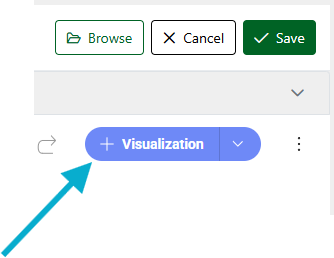
This will bring up a pop-up to allow you to select which query you would like to visualize from. If you don't see a query you expected, you'll want to go back and add that query to your Project.
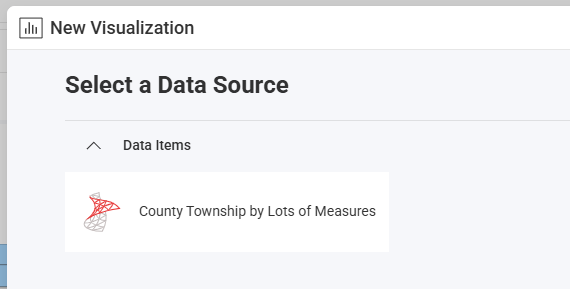
From here, you can start by choosing which visual type you'd like to use:
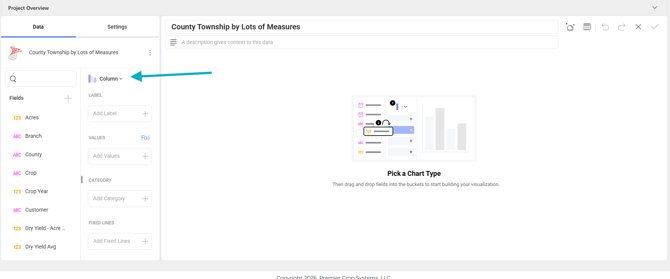
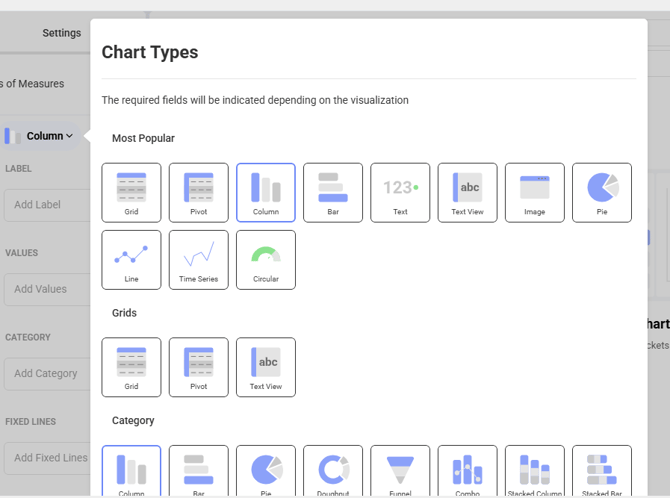
Choosing the Right Visualization Type
In choosing the best chart type you need to look at your data and answer the questions that will help you find out what story you are trying to tell with your visualization. Here's a list of the current options.
| Compare Data |  Bar |
 Column |
 Area |
 Spline |
 Combo |
 Circular Gauge |
 Spline Area |
 OHLC |
 Candlestick |
 Time Series |
| Part to Whole |  Stacked Column |
 Stacked Bar |
 Stacked Area |
 Pie |
 Doughnut |
 Funnel |
 Treemap |
|||
| Data Distribution |  Step Area |
Stacked Column |
 Scatter |
 Bubble |
||||||
| Data Trend Analysis |  Line |
Spline |
Combo |
OHLC |
Candlestick |
 Radial |
Time Series |
|||
| Data Relationships | Scatter |
Bubble |
Line |
|||||||
| KPIs and Gauges |  Bullet Graph |
 Linear |
 Text |
 KPI |
 Circular |
|||||
| Geospatial Data |  Choropleth Map |
 Scatter Map |
Once you've chosen a chart type, add data to the grid to begin to visualize it.
For more detail on how to edit a visual, check out this article on using the Visualization Editor:
https://processes.premiercrop.com/migration/knowledge/how-to-use-the-visualization-editor-in-analyst-studio