![PCS-Black-icon-1.png]](https://processes.premiercrop.com/hs-fs/hubfs/PCS-Black-icon-1.png?width=35&height=40&name=PCS-Black-icon-1.png)
In order to export, click the overflow button in the top right corner of your project, click Export:
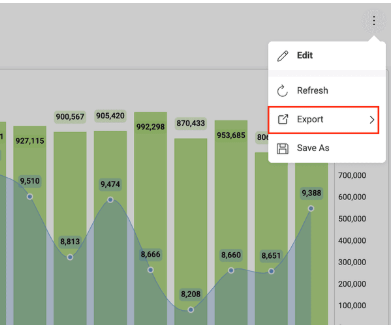
Choose from available export options:

-
Export Image - export a screen capture of the entire dashboard or individual visualizations.
-
Export PowerPoint - export your dashboard as a PowerPoint presentation.
-
Export PDF - export your dashboard as a PDF document.
-
Export Excel - you can export the data used for your dashboards to the Excel format and choose if you want to also export the visualization to your spreadsheet to do further editing in Excel.
If choosing Excel:
This Export Dashboard dialog allows you to select and rename the data sheets to be included in your Excel file. Every data sheet contains the data for a particular visualization in the dashboard you export. You can also include the visualizations in your Excel document.
The Include Visualization setting gives you the following options:
-
Include - include a dashboard's visualizations on the same sheet as the data for this visualization;
-
On Different Sheets - include visualizations and their corresponding data on separate sheets;
-
Don't Include - include only the visualizations' data in the Excel sheets.
Supported visualizations. The following chart visualizations can be directly included in the Excel sheets: Column, Line, Bar, Area, StackedColumn, StackedArea, StackedBar, Pie, Doughnut, Funnel, Composite, Scatter, Bubble, Sparklines.
The following visualizations are converted to similar types before being included in the Excel sheet: Spline and StepLine ⇒ Line; SplineArea and StepArea ⇒ Area.
If choosing Powerpoint:
In the Export Dashboard dialog you can manage the following settings:
-
Change the main title of your PowerPoint presentation. The default title is your dashboard's title.
-
Change the slide's title. You can also add a description in the Add Description box (the second box). The default slide's title is the title of the visualization displayed on the slide.
-
Manage Branding settings options allows you to choose:
-
Author's and their Company's name - displayed in the header panel of the slide;
-
Company's logo displayed in the footer and color (the main color of the PowerPoint presentation) - here you can choose one of the following options:
-
Custom - select a color and upload a logo image of your choice.
-
-
Requirements for logo images. The image you upload for a logo must be no bigger than 5 MB and one of the following formats: JPG, JPEG, PNG, GIF.
-
You can manage your PowerPoint slides by selecting a slide from the list to modify its title, annotate or delete it (by removing the tick icon in the upper right corner).
-
Annotate the selected slide by clicking/tapping the pencil icon. For more information about annotation settings, please refer to Annotating images in the Exporting Dashboards as Images topic.