![PCS-Black-icon-1.png]](https://processes.premiercrop.com/hs-fs/hubfs/PCS-Black-icon-1.png?width=35&height=40&name=PCS-Black-icon-1.png)
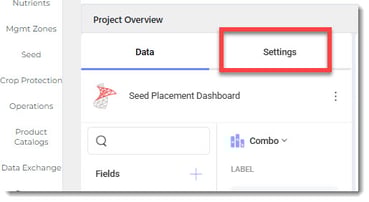
While in edit mode, click on the "Settings" tab.
Click the dropdown for the Axis Titles settings.
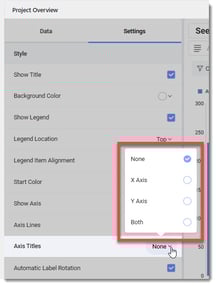
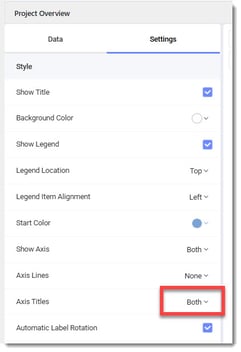
Choose which Title you want to add to your chart.
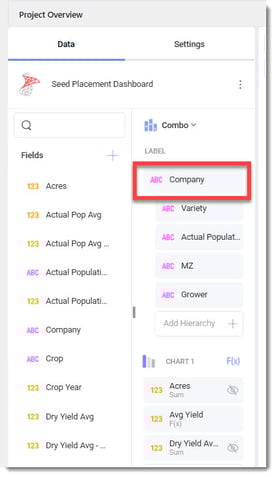
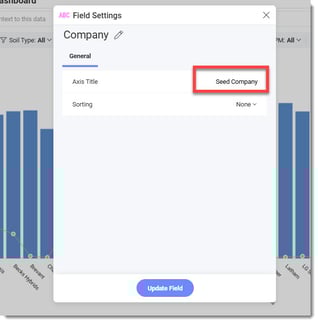
Find the field that you want to add Titles to by clicking on it. (For this example, we'll choose "Company".
Type in the Title name that you want displayed.
(For this example, I've typed in "Seed Company".)
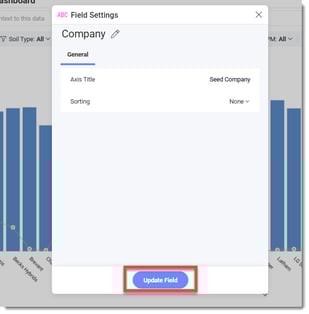
Click the "Update Field" button.
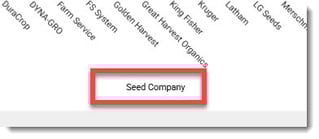
You will see it has been added to your chart.
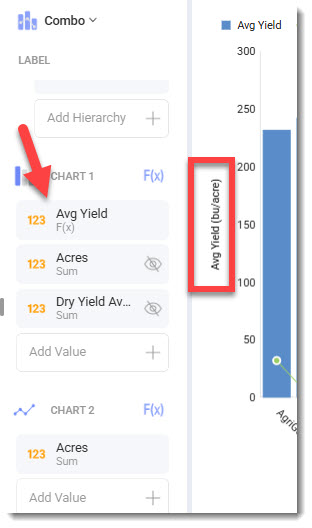
For the Y axis, you may have to do a few extra steps.
For this example, a calculated field exists below/behind a field that is not visible on the Chart.
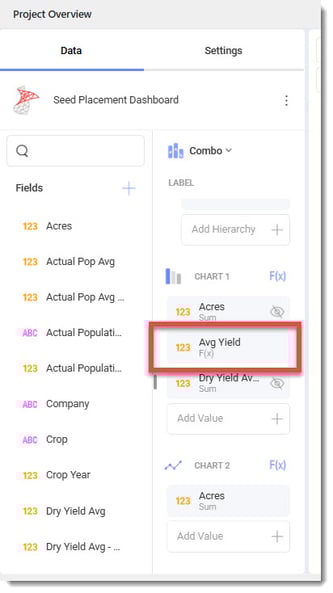
Perform the same steps as you did in the example above and then drag the desired Visible field to the top of the list.
You will see that this field's Axis Title is now visible on the Chart.
Remember to save the visualization that you've made your changes to an then the Project once you have done this!
If you need any assistance, contact your advisor support representative.