![PCS-Black-icon-1.png]](https://processes.premiercrop.com/hs-fs/hubfs/PCS-Black-icon-1.png?width=35&height=40&name=PCS-Black-icon-1.png)
At a visualization level, you can also apply "quick" filters, which allow you to dynamically filter the visualization contents as the quick filter selection changes. These become part of the dashboard definition and can't be modified by consumers of the dashboard.
In order to define a quick filter, select the Add a Visualization Filter button on top of your visualization in the Visualization Editor:
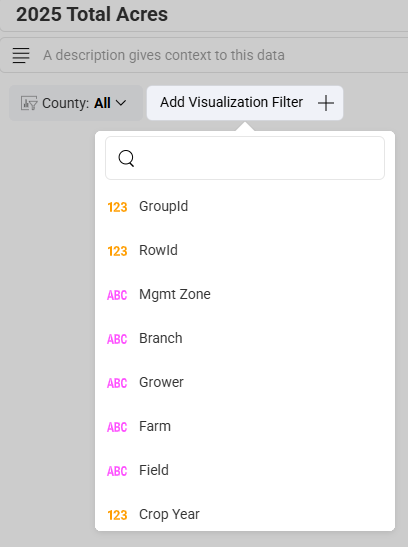
The filter options displayed in the Visualization Filters area depend on the data type of the field. There are three different filter dialogs: text, numeric and date fields. Once created, the quick filter will be displayed on top of your visualization in the Visualization Editor.
When you've left edit mode and the visualization is maximized in Dashboard View mode, you will see it under the visualization's title.
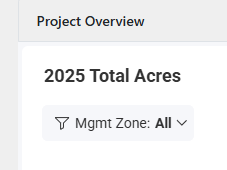
As with Dashboard Filters, this enables a dynamic filtering of the visualization contents as the quick filter selection changes.
Cascading Filters
The list of possible values displayed to select from in Quick Filters will be filtered based on previous Quick Filter selections. Fields on the left take precedence and determine the list of possible values on filters to the right.
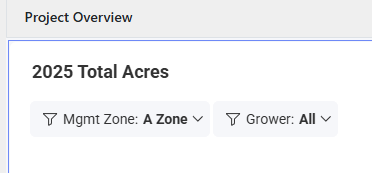
For instance, in the example below, the Management Zone filter was created first, and the Grower filter was created after that one. After selecting only A Zone in Management Zone, the Grower list changes to only display Growers with A Zones