![PCS-Black-icon-1.png]](https://processes.premiercrop.com/hs-fs/hubfs/PCS-Black-icon-1.png?width=35&height=40&name=PCS-Black-icon-1.png)
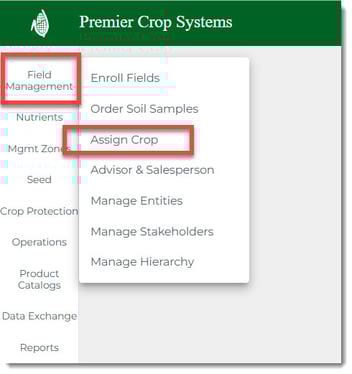
Once logged into your Premier Crop Services account, navigate to Field Management > Assign Crop page.
Select the hierarchy and year and click the "Load" button.

Select the fields that you wish to batch assign a Previous Crop to.
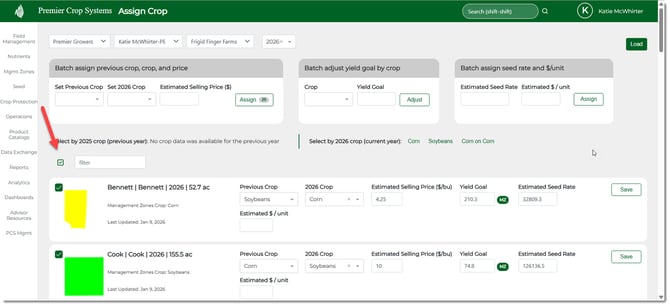
Use the filtering options for faster selection!
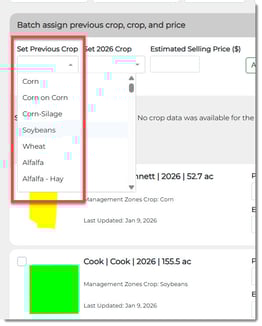
Using the Set Previous Crop dropdown, select the Previous Crop that you wish to assign to the selected fields.
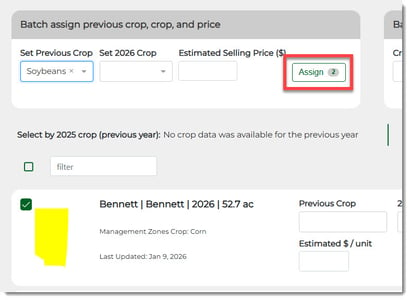
Click the "Assign" button.
If you need any assistance, contact your advisor support representative.