---
title: How to Connect or Disconnect Filters From Visualizations
description: Filters visualizations connect disconnect
---
[Skip to content](https://processes.premiercrop.com/knowledge/how-to-connect-or-disconnect-filters-from-visualizations#main-content)
[Customer portal](https://processes.premiercrop.com/tickets-view?hsLang=en)
![PCS-Black-icon-1.png\]](https://processes.premiercrop.com/hs-fs/hubfs/PCS-Black-icon-1.png?width=35&height=40&name=PCS-Black-icon-1.png)
- [Tickets](https://processes.premiercrop.com/tickets-view)
- [Sign out](https://processes.premiercrop.com/_hcms/mem/logout)
Open main navigation
Close main navigation
- [Tickets](https://processes.premiercrop.com/tickets-view)
- [Sign out](https://processes.premiercrop.com/_hcms/mem/logout)
- [Customer portal](https://processes.premiercrop.com/tickets-view)
- [Go to premiercrop.com](https://services.premiercrop.com/)
[Go to premiercrop.com](https://services.premiercrop.com/)
What do you need help with today?
- There are no suggestions because the search field is empty.
1. [Premier Knowledge Base](https://processes.premiercrop.com/knowledge?hsLang=en)
2. [Analyst Studio](https://processes.premiercrop.com/knowledge/analyst-studio?hsLang=en)
3. [Filters](https://processes.premiercrop.com/knowledge/analyst-studio?hsLang=en#filters)
# How to Connect or Disconnect Filters From Visualizations
## Filters can be set to apply to all visuals in your project, or just some!
### Connected Visualizations to Filters
When adding filters to dashboards, you can choose whether your filter applies to all visualizations in the dashboard, or you can manually disconnect some visuals.
> ###### Tip: In order to create benchmarking visuals, you may choose to apply a Grower filter to some visuals, but leave other visuals at the large group level and be sure to name them correctly. This way, when you filter at the top of your dashboard, some visuals will reflect how a grower performed against the group.
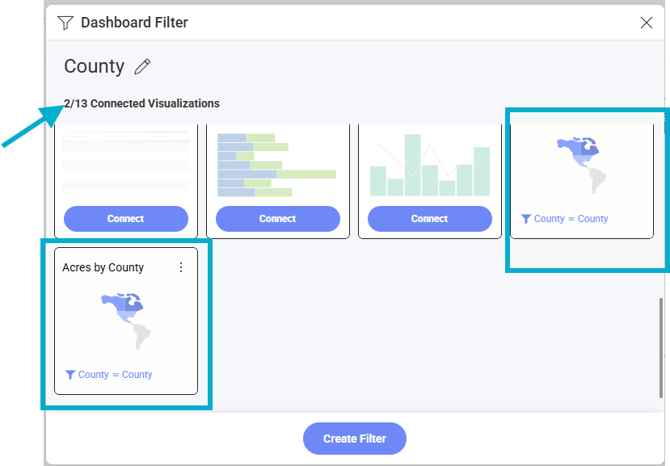
**Binding the data in a visualization to a dashboard filter can be done in two ways:**
- **As part of the Dashboard Filter configuration** (as shown above). This allows you to centrally configure binding between a dashboard filter and all visualizations in the dashboard.
- **Through the Visualization Editor** so that you can bind an individual visualization, even after the dashboard filter has been created.
In both cases, binding is defined by adding rules that link a field in the dashboard filter dataset with a corresponding field in the visualization's dataset (field binding). You can always remove a visualization's binding by selecting **Disconnect** in the Visualization Editor or the Dashboard Filter menu.
### Field Binding
Field binding allows you to configure a join relationship between the dashboard filter dataset schema and the visualization's schema. To do this, select the **Dashboard Filter** you want to use and then **Connect**.
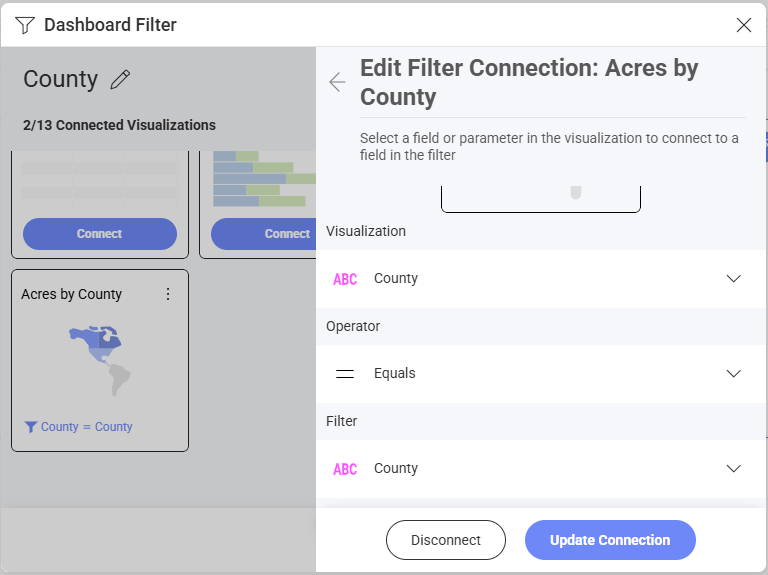
In the dialog above, you will need to configure:
- **Visualization**: this represents the column in the visualization's dataset that will be used as key to join with the dashboard filter dataset. For example, *County*, etc.
- **Operators**: the join operators to use, which can be one of the following:
- **Is Equal**: requires that both the field value and the dashboard filter selection be exactly the same.
- **Contains**: meant to be used with string fields, it returns a match that is enabled when the field value contains the dashboard filter selection. For instance, Visualization=County CONTAINS Filter=`Co`.
- **Between**: this is only meant to be used with Date Range dashboard filters.
- **Filter**: the specific dashboard filter from the dashboard filters list that will be joined.
- [Getting Started with Premier Crop](https://processes.premiercrop.com/knowledge/getting-started-with-premier-crop?hsLang=en#main-content)
- [Advisor Excel-erator](https://processes.premiercrop.com/knowledge/getting-started-with-premier-crop?hsLang=en#advisor-excel-erator)
- [Premier Crop Systems Software Training](https://processes.premiercrop.com/knowledge/premier-crop-systems-software-training?hsLang=en#main-content)
- [Field Management](https://processes.premiercrop.com/knowledge/premier-crop-systems-software-training?hsLang=en#field-management)
- [Nutrients](https://processes.premiercrop.com/knowledge/premier-crop-systems-software-training?hsLang=en#nutrients)
- [Mgmt Zones](https://processes.premiercrop.com/knowledge/premier-crop-systems-software-training?hsLang=en#mgmt-zones)
- [Seed](https://processes.premiercrop.com/knowledge/premier-crop-systems-software-training?hsLang=en#seed)
- [Crop Protection](https://processes.premiercrop.com/knowledge/premier-crop-systems-software-training?hsLang=en#crop-protection)
- [Operations](https://processes.premiercrop.com/knowledge/premier-crop-systems-software-training?hsLang=en#operations)
- [Premier Intelligence](https://processes.premiercrop.com/knowledge/premier-crop-systems-software-training?hsLang=en#premier-intelligence)
- [Data Exchange](https://processes.premiercrop.com/knowledge/premier-crop-systems-software-training?hsLang=en#data-exchange)
- [Reports](https://processes.premiercrop.com/knowledge/premier-crop-systems-software-training?hsLang=en#reports)
- [Analytics](https://processes.premiercrop.com/knowledge/premier-crop-systems-software-training?hsLang=en#analytics)
- [Dashboards](https://processes.premiercrop.com/knowledge/premier-crop-systems-software-training?hsLang=en#dashboards)
- [Webinars](https://processes.premiercrop.com/knowledge/premier-crop-systems-software-training?hsLang=en#webinars)
- [System Information](https://processes.premiercrop.com/knowledge/premier-crop-systems-software-training?hsLang=en#system-information)
- [Tips and Tricks](https://processes.premiercrop.com/knowledge/premier-crop-systems-software-training?hsLang=en#tips-and-tricks)
- [Unpublished Videos](https://processes.premiercrop.com/knowledge/premier-crop-systems-software-training?hsLang=en#unpublished-videos)
- [Release Note](https://processes.premiercrop.com/knowledge/premier-crop-systems-software-training?hsLang=en#release-note)
- [Analyst Studio](https://processes.premiercrop.com/knowledge/analyst-studio?hsLang=en#main-content)
- [Getting Started](https://processes.premiercrop.com/knowledge/analyst-studio?hsLang=en#getting-started)
- [Visualizations](https://processes.premiercrop.com/knowledge/analyst-studio?hsLang=en#visualizations)
- [Filters](https://processes.premiercrop.com/knowledge/analyst-studio?hsLang=en#filters)
- [Calculated Fields](https://processes.premiercrop.com/knowledge/analyst-studio?hsLang=en#calculated-fields)
- [Exporting](https://processes.premiercrop.com/knowledge/analyst-studio?hsLang=en#exporting)
- [Hardware & Software](https://processes.premiercrop.com/knowledge/hardware-software?hsLang=en#main-content)
- [Ag Leader](https://processes.premiercrop.com/knowledge/hardware-software?hsLang=en#ag-leader)
- [Case IH](https://processes.premiercrop.com/knowledge/hardware-software?hsLang=en#case-ih)
- [John Deere](https://processes.premiercrop.com/knowledge/hardware-software?hsLang=en#john-deere)
- [Kinze](https://processes.premiercrop.com/knowledge/hardware-software?hsLang=en#kinze)
- [Precision Planting](https://processes.premiercrop.com/knowledge/hardware-software?hsLang=en#precision-planting)
- [Raven](https://processes.premiercrop.com/knowledge/hardware-software?hsLang=en#raven)
- [SMS](https://processes.premiercrop.com/knowledge/hardware-software?hsLang=en#sms)
- [Trimble](https://processes.premiercrop.com/knowledge/hardware-software?hsLang=en#trimble)
- [Sales](https://processes.premiercrop.com/knowledge/sales?hsLang=en#main-content)
- [Sales Resources](https://processes.premiercrop.com/knowledge/sales?hsLang=en#sales-resources)
- [Partner](https://processes.premiercrop.com/knowledge/sales?hsLang=en#partner)
[](https://4362973.hs-sites.com/knowledge?hsLang=en)
Premier Processes
Copyright © 2026, Powered by Premier Crop Systems