---
title: How To Use the Visualization Editor in Analyst Studio
description: How to use the visualization editor in Analyst Studio
---
[Skip to content](https://processes.premiercrop.com/knowledge/how-to-use-the-visualization-editor-in-analyst-studio#main-content)
[Customer portal](https://processes.premiercrop.com/tickets-view?hsLang=en)
![PCS-Black-icon-1.png\]](https://processes.premiercrop.com/hs-fs/hubfs/PCS-Black-icon-1.png?width=35&height=40&name=PCS-Black-icon-1.png)
- [Tickets](https://processes.premiercrop.com/tickets-view)
- [Sign out](https://processes.premiercrop.com/_hcms/mem/logout)
Open main navigation
Close main navigation
- [Tickets](https://processes.premiercrop.com/tickets-view)
- [Sign out](https://processes.premiercrop.com/_hcms/mem/logout)
- [Customer portal](https://processes.premiercrop.com/tickets-view)
- [Go to premiercrop.com](https://services.premiercrop.com/)
[Go to premiercrop.com](https://services.premiercrop.com/)
What do you need help with today?
- There are no suggestions because the search field is empty.
1. [Premier Knowledge Base](https://processes.premiercrop.com/knowledge?hsLang=en)
2. [Analyst Studio](https://processes.premiercrop.com/knowledge/analyst-studio?hsLang=en)
3. [Visualizations](https://processes.premiercrop.com/knowledge/analyst-studio?hsLang=en#visualizations)
# How To Use the Visualization Editor in Analyst Studio
## Visualization Editor Overview
Below, you will find a list of all sections of the *Visualization* *Editor* with their capabilities.
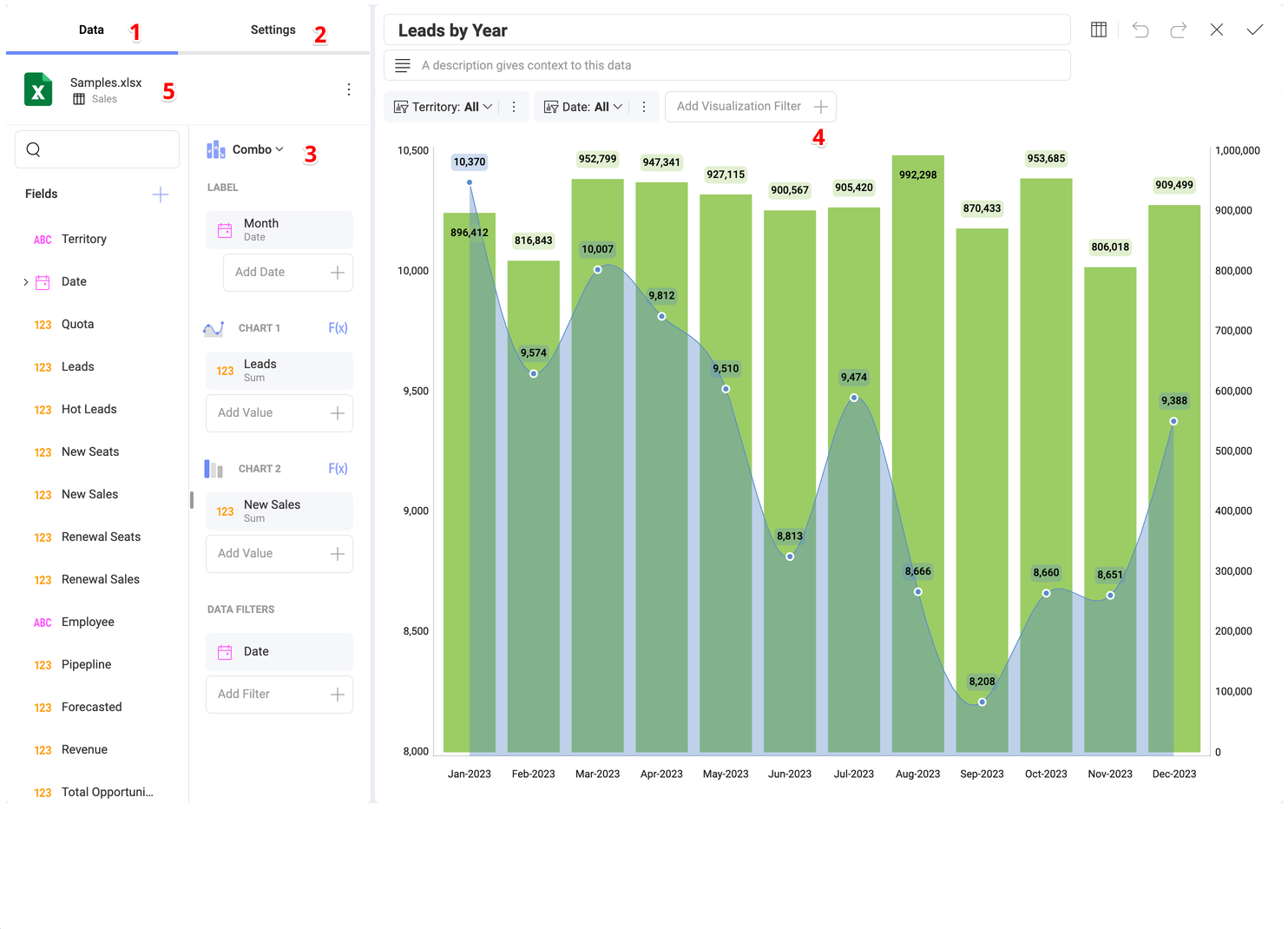
1. **Data Section** - this section contains two panels:
1. **Fields** - All of the available fields within your data source will appear on the left panel. Each field has an indicator that informs the users what field type each field is: *Date*, *Value*, *Text*. A search bar appears when the available fields are more than ten. The *plus* icon in this panel allows you to either blend data sources or calculate a field.
2. **Visualization Fields** - Here is where you will drag and drop, or click the *+* mark to see the available fields and select those you want to use for the visualization you are creating.
2. **Settings Section** - This section allows you to customize what you want to show. Each visualization comes with its own settings. At the bottom of the *Settings* section you will see the option for links. This is a powerful feature, that takes drill down to a whole new level.
3. **Visualization Picker** - Here you can choose your desired visualization and preview the final result. As you switch between the different chart types in the dropdown menu, you will notice the visualization fields section change. The fields for each visualization are different, but they change automatically so you only need to fill them in.
4. **Visualization Workspace** - Here is where you will be able to see the visualization you are creating or editing as you drag and drop fields. The visualization won't populate until you have all the necessary fields needed to create that chart type.
5. **Data Source** - The data source that you are currently working with will be displayed here. With a click, you can change between the different sheets, tables or views within your source or change your connection to a new source entirely without having to leave the editor.
Among other things, you will be able to:
- **Sort** & **filter** data.
- **Aggregate data** in the data editor.
- **Search**, **Visualize** & **format** data.
After you're done building the visualization, select the *check* icon to return to the *Project Editor*. In the Project Editor, you can control the layout, size, and location of the visualizations in a project by simply dragging visualizations and their borders. When you are done formatting and styling, click/tap on the *check* icon again to save your dashboard.
- [Getting Started with Premier Crop](https://processes.premiercrop.com/knowledge/getting-started-with-premier-crop?hsLang=en#main-content)
- [Advisor Excel-erator](https://processes.premiercrop.com/knowledge/getting-started-with-premier-crop?hsLang=en#advisor-excel-erator)
- [Premier Crop Systems Software Training](https://processes.premiercrop.com/knowledge/premier-crop-systems-software-training?hsLang=en#main-content)
- [Field Management](https://processes.premiercrop.com/knowledge/premier-crop-systems-software-training?hsLang=en#field-management)
- [Nutrients](https://processes.premiercrop.com/knowledge/premier-crop-systems-software-training?hsLang=en#nutrients)
- [Mgmt Zones](https://processes.premiercrop.com/knowledge/premier-crop-systems-software-training?hsLang=en#mgmt-zones)
- [Seed](https://processes.premiercrop.com/knowledge/premier-crop-systems-software-training?hsLang=en#seed)
- [Crop Protection](https://processes.premiercrop.com/knowledge/premier-crop-systems-software-training?hsLang=en#crop-protection)
- [Operations](https://processes.premiercrop.com/knowledge/premier-crop-systems-software-training?hsLang=en#operations)
- [Premier Intelligence](https://processes.premiercrop.com/knowledge/premier-crop-systems-software-training?hsLang=en#premier-intelligence)
- [Data Exchange](https://processes.premiercrop.com/knowledge/premier-crop-systems-software-training?hsLang=en#data-exchange)
- [Reports](https://processes.premiercrop.com/knowledge/premier-crop-systems-software-training?hsLang=en#reports)
- [Analytics](https://processes.premiercrop.com/knowledge/premier-crop-systems-software-training?hsLang=en#analytics)
- [Dashboards](https://processes.premiercrop.com/knowledge/premier-crop-systems-software-training?hsLang=en#dashboards)
- [Webinars](https://processes.premiercrop.com/knowledge/premier-crop-systems-software-training?hsLang=en#webinars)
- [System Information](https://processes.premiercrop.com/knowledge/premier-crop-systems-software-training?hsLang=en#system-information)
- [Tips and Tricks](https://processes.premiercrop.com/knowledge/premier-crop-systems-software-training?hsLang=en#tips-and-tricks)
- [Unpublished Videos](https://processes.premiercrop.com/knowledge/premier-crop-systems-software-training?hsLang=en#unpublished-videos)
- [Release Note](https://processes.premiercrop.com/knowledge/premier-crop-systems-software-training?hsLang=en#release-note)
- [Analyst Studio](https://processes.premiercrop.com/knowledge/analyst-studio?hsLang=en#main-content)
- [Getting Started](https://processes.premiercrop.com/knowledge/analyst-studio?hsLang=en#getting-started)
- [Visualizations](https://processes.premiercrop.com/knowledge/analyst-studio?hsLang=en#visualizations)
- [Filters](https://processes.premiercrop.com/knowledge/analyst-studio?hsLang=en#filters)
- [Calculated Fields](https://processes.premiercrop.com/knowledge/analyst-studio?hsLang=en#calculated-fields)
- [Exporting](https://processes.premiercrop.com/knowledge/analyst-studio?hsLang=en#exporting)
- [Hardware & Software](https://processes.premiercrop.com/knowledge/hardware-software?hsLang=en#main-content)
- [Ag Leader](https://processes.premiercrop.com/knowledge/hardware-software?hsLang=en#ag-leader)
- [Case IH](https://processes.premiercrop.com/knowledge/hardware-software?hsLang=en#case-ih)
- [John Deere](https://processes.premiercrop.com/knowledge/hardware-software?hsLang=en#john-deere)
- [Kinze](https://processes.premiercrop.com/knowledge/hardware-software?hsLang=en#kinze)
- [Precision Planting](https://processes.premiercrop.com/knowledge/hardware-software?hsLang=en#precision-planting)
- [Raven](https://processes.premiercrop.com/knowledge/hardware-software?hsLang=en#raven)
- [SMS](https://processes.premiercrop.com/knowledge/hardware-software?hsLang=en#sms)
- [Trimble](https://processes.premiercrop.com/knowledge/hardware-software?hsLang=en#trimble)
- [Sales](https://processes.premiercrop.com/knowledge/sales?hsLang=en#main-content)
- [Sales Resources](https://processes.premiercrop.com/knowledge/sales?hsLang=en#sales-resources)
- [Partner](https://processes.premiercrop.com/knowledge/sales?hsLang=en#partner)
[](https://4362973.hs-sites.com/knowledge?hsLang=en)
Premier Processes
Copyright © 2026, Powered by Premier Crop Systems