![PCS-Black-icon-1.png]](https://processes.premiercrop.com/hs-fs/hubfs/PCS-Black-icon-1.png?width=35&height=40&name=PCS-Black-icon-1.png)
Dashboard filters allow you to slice the contents of visualizations in a dashboard all at once. When you add datasets to the dashboard filters collection, they will remain in context for all dashboard visualization to be bound to. Dynamic filtering applies to all connected visualizations, as the filter selection changes.
For instance, a dataset with the list of locations can be added to enable binding all visualizations of a dashboard. In this scenario, the contents of each visualization can be filtered by location by the user browsing the information in that dashboard.
Dashboard Filtering
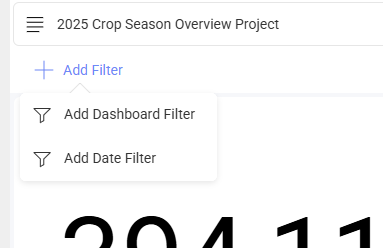
Analyst Studio also supports activating a Date Range as a Dashboard Filter, which enables the filtering of all visualizations by a specific period of time.
Dashboard Filter configurable properties include:
-
Displayed Field
-
Multiple Selection
-
Required Selection
-
Data Filters
Displayed Fields
To edit Displayed Fields on a Dashboard Filter, choose the 3 dot menu and select Edit to see this view:
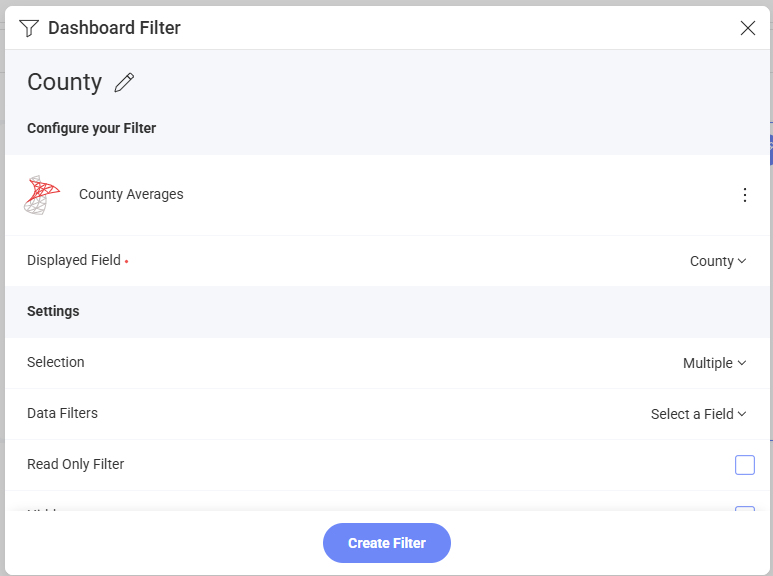
You will be able to change the following settings for the filter:
-
Title: The title for the dashboard filter, which will be displayed right under the dashboard title. By default, this is the name of the field that will be used as a filter.
-
Displayed Field/Element: The field in your dataset, which will be used as a dashboard filter.
-
Selection: This setting allows you to configure: Multiple Selection (more than one value can be selected at a time) and/or Required Selection (at least one value must always be selected).
-
Data Filters: This setting allows you to apply any field filters and rules to the data source used for the dashboard filter.
-
Connected Visualizations: Whether your dashboard will be connected to any visualization or not.
View our other Filter articles for more tips!