![PCS-Black-icon-1.png]](https://processes.premiercrop.com/hs-fs/hubfs/PCS-Black-icon-1.png?height=40&name=PCS-Black-icon-1.png)
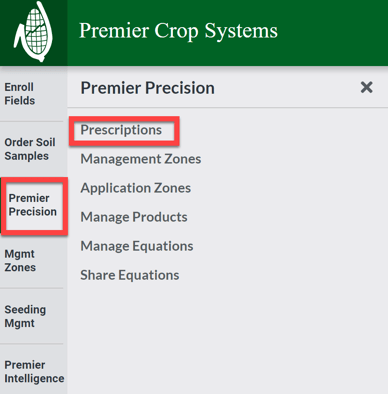
- Once logged into your PCS account, navigate to the "Premier Precision" page and select "Prescriptions".
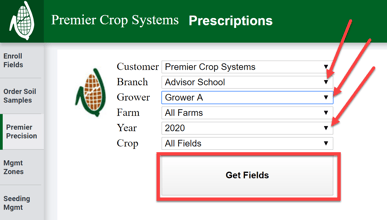
- Select the Branch, Grower, and Year (and any other information to filter) and click on the “Get Fields” button.
- Find the field that you wish to edit the recommendation for and click on the "New Adjust Map" button.

- Since this tool has numerous features, you can watch this video or try specific features below.
- For specific features within this tool, try these Premier Processes:
- Changing Legend Colors
- Continuously Scale the Legend to avoid those gray areas that show: "Out of Legend Range"
- Smoothing
- Placing Nutrient Learning Blocks
- Using Reference Layers
- Adjusting the Whole Field
- The Slider
- Adjust (scale) by a %
- Adjust to Total $
- Adjust to Avg. $/ac
- Adjust to Avg. units of Nutrient/ac
- Adjusting parts of the field