![PCS-Black-icon-1.png]](https://processes.premiercrop.com/hs-fs/hubfs/PCS-Black-icon-1.png?height=40&name=PCS-Black-icon-1.png)
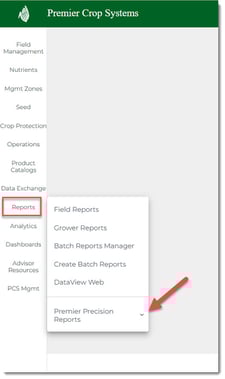
Once logged into your PCS account, click on "Reports" and then expand the options for "Premier Precision Reports".
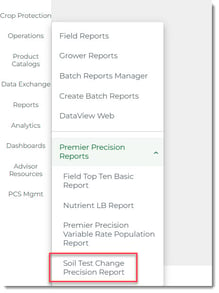
Select the "Soil Test Change Precision Report" at the bottom of the list.
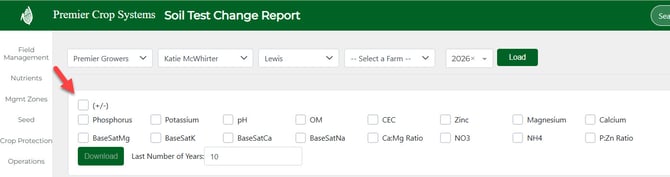
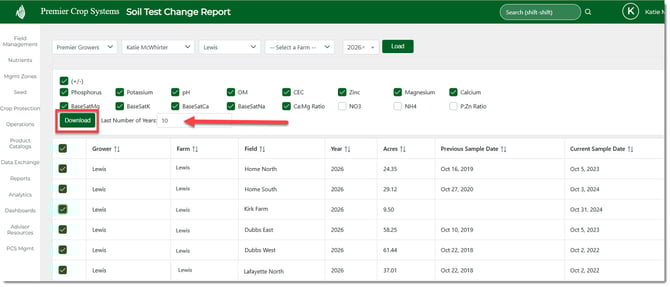
Select the Grower (or drill down to a specific Farm), a year, and click the "Load" button.

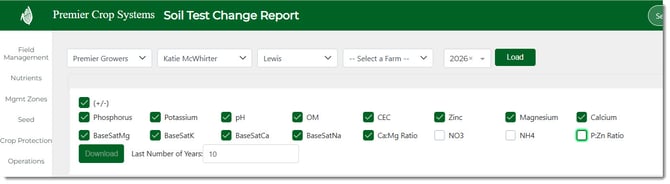
Select specific soil test values, or select all by selecting the "(+/-)" option.
You can sort ascending or descending by clicking on the headers.

Select the field(s) that you wish to include in the report and click the "Download" button, as well as the last number of years to include.
This will generate an Excel spreadsheet that can be directly printed.
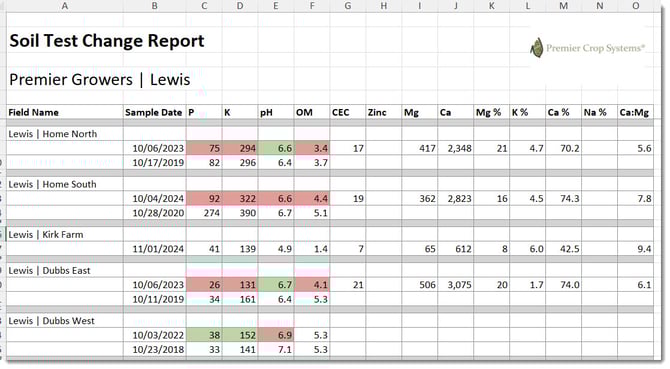
The values will be colored in green if they are higher than the previous sample and red if they are a lesser value. If there is no change or no test to compare it to, it will not be filled in with any color.
If you have any questions, do not hesitate to contact your advisor support representative.